> For the complete documentation index, see [llms.txt](https://resources.unizin.org/llms.txt). Markdown versions of documentation pages are available by appending `.md` to page URLs; this page is available as [Markdown](https://resources.unizin.org/products/content/unizin-engage/engage-lti-1.3-registration.md).
# Engage LTI 1.3 Registration
## Registration
{% hint style="info" %}
**IMPORTANT:** After 07/13/26, Unizin will continue to support both Engage LTI 1.1 and Engage LTI 1.3 tools until all members have switched over to 1.3.
{% endhint %}
Beginning on **07/13/26**, members may register the new Engage LTI 1.3 tool. Steps to register are listed below. Steps 1-6 may be completed at any time beforehand.
**Note**: This install must be performed by a Canvas Administrator
1. Follow [instructions from instructure](https://community.instructure.com/en/kb/articles/661475-how-do-i-configure-an-lti-key-for-an-account) until `Enter LTI Settings` .
2. Enter LTI Settings.
1. Enter "Unizin Engage" or other name for Key Name. The Key Name should coincide with what you plan to name the LTI Tool App in Canvas
2. Enter the email of the person who owns the external tool for Owner Email.
3. Enter `https://endpoint.courseloadtools.com/launch/{member_name}/callback/` for Redirect URI.
1. *Note: replace member\_name with your member's shortcode* (`iu` `wisc` `uiowa` `unl` `umich` ).
4. Enter what you’d like for notes on this tool.
3. Enter Manual Entry Details.
1. Enter "Unizin Engage" or other name for Title.
2. Enter what you’d like for Description on this tool.
3. Enter `https://endpoint.courseloadtools.com/launch/{member_name}/callback/` for Target Link URI.
1. *Note: replace member\_name with your member's shortcode* (`iu` `wisc` `uiowa` `unl` `umich` ).
4. Enter `https://endpoint.courseloadtools.com/launch/{member_name}/lti/` for OpenID Connect Initiation Url.
1. *Note: replace member\_name with your member's shortcode* (`iu` `wisc` `uiowa` `unl` `umich` ).
5. Select "Public JWK URL" for JWK Method.
6. Enter [`https://sso.canvaslms.com/api/lti/security/jwks`](https://sso.canvaslms.com/api/lti/security/jwks) for Public JWK URL.
4. Under Additional Settings.
1. Copy and paste the below into Custom Fields.
2. *Note: replace member\_name with your member's shortcode* (`iu` `wisc` `uiowa` `unl` `umich` ).
```jsx
roles=$Canvas.membership.roles
tenant={member_name}
user_id=$User.username
ext_roles=$Canvas.xuser.allRoles
context_id=$Context.id
context_label=$CourseOffering.sourcedId
context_title=$Context.title
canvas_user_id=$Canvas.user.id
canvas_course_id=$Canvas.course.id
canvas_api_domain=$Canvas.api.domain
canvas_enrollment_state=$Canvas.enrollment.enrollmentState
canvas_workflow_state=$Canvas.course.workflowState
lis_person_name_full=$Person.name.full
lis_person_sourcedid=$Person.sourcedId
lis_person_name_given=$Person.name.given
lis_person_name_family=$Person.name.family
lis_person_contact_email_primary=$Person.email.primary
```
5. Add "Course Navigation" to Placements.
6. Save key.
{% hint style="info" %}
**IMPORTANT:** Under "Details" for the new key, copy the "client ID" and paste into a new file, save that file, and [send it to us securely using our Sendthisfile service](https://www.sendthisfile.com/f.jsp?id=EcAVQWw2AZGKDbl1QOYlJfCZ). This is required to complete set up of the new tool.
{% endhint %}
7. ***After*** 07/13/26, once complete and ready to be turned on for all courses, turn state to on so all courses have the Unizin Engage LTI App available. If steps 1-6 are completed ***before*** 07/13/26, in the developer keys page, the state can be kept off and then switched on after 07/13/26.
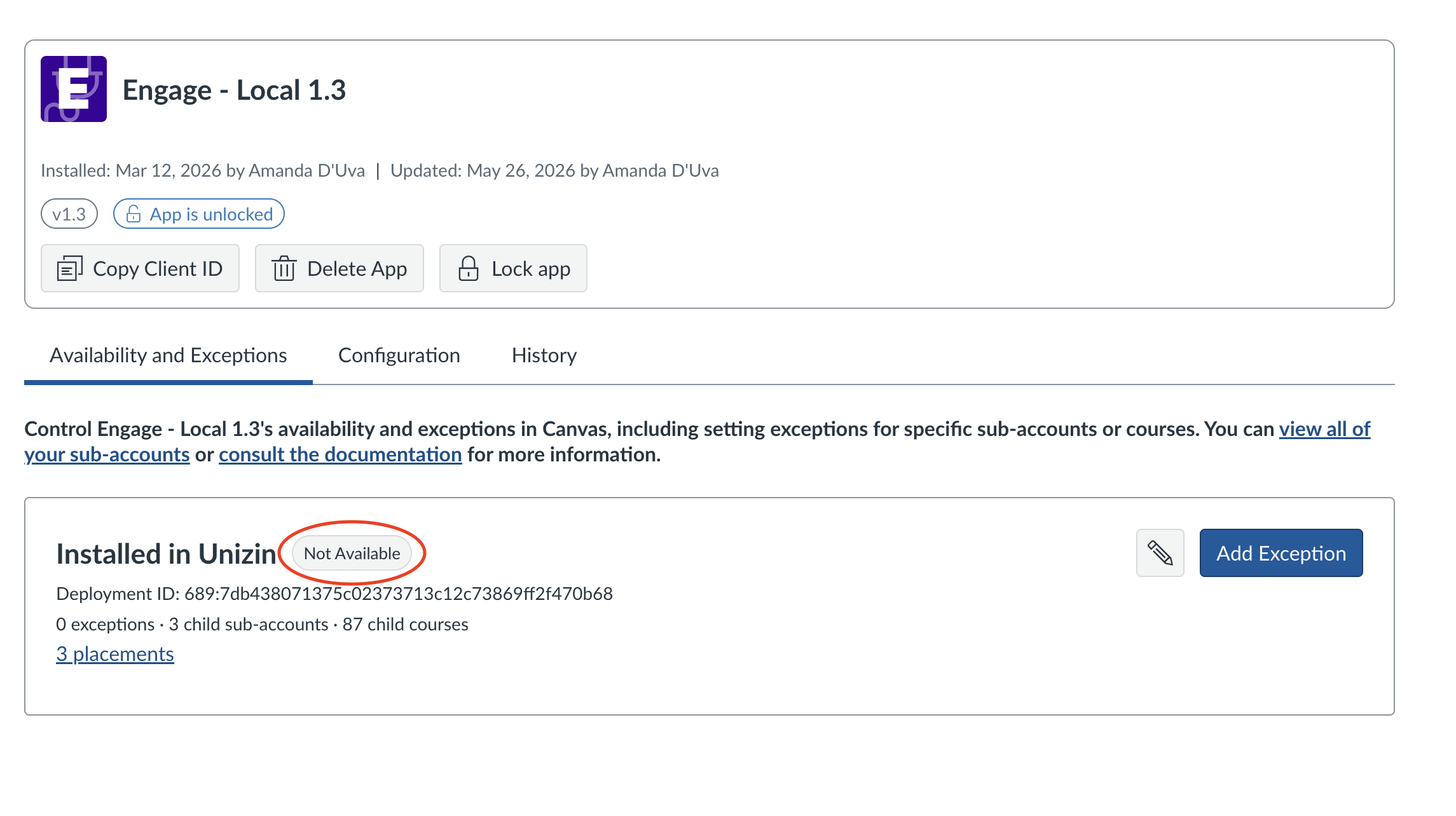
1. **Note**: The App Manager in Canvas has an `Available` vs `Not Available` switch that can be utilized for pre set-up. Once the App is swapped to `Available` it will be immediately seen in all courses.
8. At this time you will decide if you'd like to move all courses to the new Engage 1.3 LTI tool. If it is ***after*** 07/13/26, simply remove the old Unizin Engage LTI app at the root account level in Canvas. If you are not yet ready to move all courses over to the new tool, toggle the new app back to `Not Available` once any desired testing has been completed.
{% hint style="info" %}
**Please note:** Ensure 3rd party cookies are enabled in your browser to access the Engage 1.3 LTI tool.
{% endhint %}
## Testing
In order to test the new Engage LTI 1.3 tool, Unizin recommends that members follow steps 1-6 in the above registration steps, and send the "client ID" [securely using our Sendthisfile service](https://www.sendthisfile.com/f.jsp?id=EcAVQWw2AZGKDbl1QOYlJfCZ). Once this has been completed, members can switch the app to `Available` to test, and switch it back to `Not Available` once testing has been completed.