> For the complete documentation index, see [llms.txt](https://resources.unizin.org/llms.txt). Markdown versions of documentation pages are available by appending `.md` to page URLs; this page is available as [Markdown](https://resources.unizin.org/products/content/unizin-engage/legacy-engage-printing.md).

# Legacy Engage Printing

## Print Your Textbook

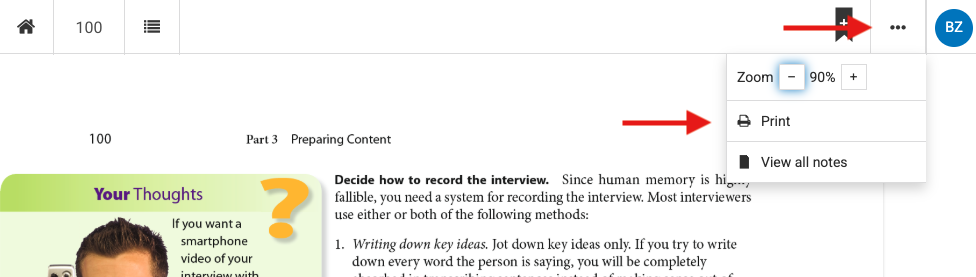
Click the ellipsis to open the more options menu.

Click the print button.

<figure><img src="/files/kb3Mcn3kNURZAkTaotNi" alt="This is an image of the top menu bar with arrows pointing to the More Options menu and the Print button"><figcaption></figcaption></figure>

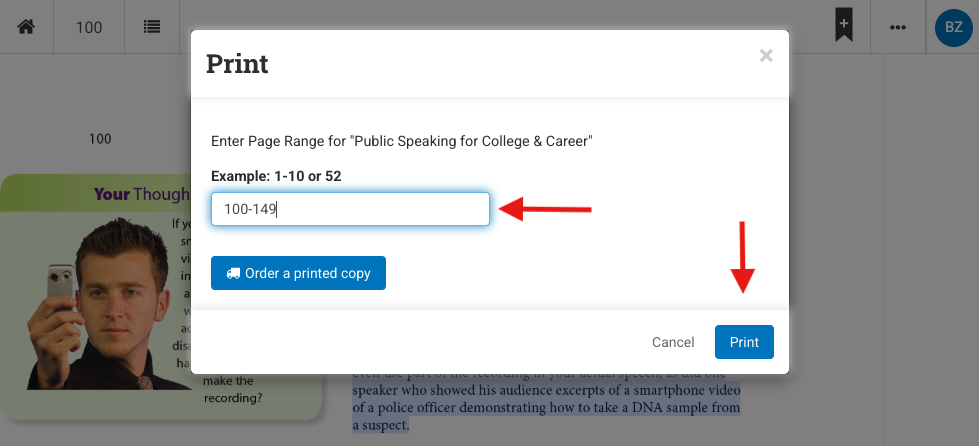
Enter the page range to print and click the print button.&#x20;

* Best Practice: The reader's print limitation is 50 pages per batch. Print only the specific sections you need or open the table of contents to reference the page numbers and print one chapter at a time.
* Note: Do not click on the Order a Printed Copy button. While this button is visible on the front end, it has been disabled on the back end.

<figure><img src="/files/bTmOOhmsFqLz79BLUwUR" alt="Image shows the print range dialog box with arrows pointing to where the page range is to be added and where to click to print"><figcaption></figcaption></figure>

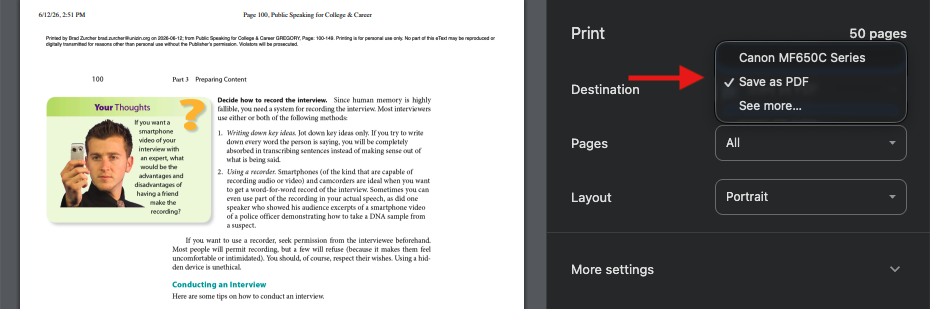
In the print dialog, select either the printer you wish to print from or Print to PDF.

<figure><img src="/files/Tt4V5LG8BlsuIiSa2m35" alt="Image of the printer page with an arrow pointing to the destination selector, where the user can choose either a printer or print to PDF."><figcaption></figcaption></figure>

## Print/Download Your Notes And Annotations

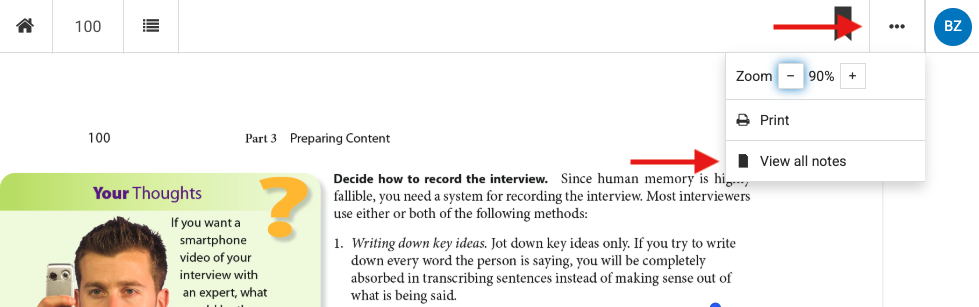
Click the ellipsis to open the more options menu.

Click the View all notes button.

<figure><img src="/files/ImjP1P5w8lbJ7KOZHnbd" alt="This is an image of the top menu bar with arrows pointing to the More Options menu and the View all notes button."><figcaption></figcaption></figure>

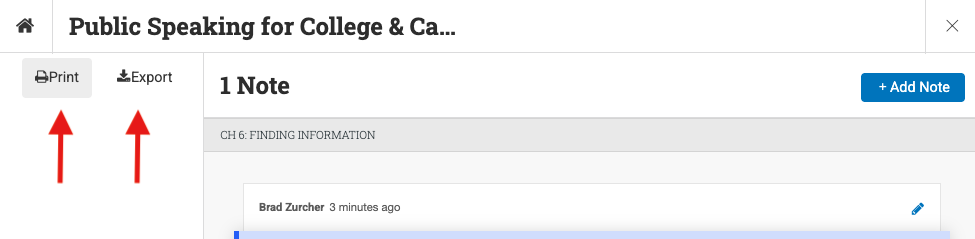
You can print or download the data.&#x20;

<figure><img src="/files/mBeiYNVD6bncIzdmYdiu" alt="Image of the notes view with arrows pointing to the print and export buttons."><figcaption></figcaption></figure>


---

# Agent Instructions
This documentation is published with GitBook. GitBook is the documentation platform designed so that both humans and AI agents can read, navigate, and reason over technical content effectively. Learn more at gitbook.com.

## Querying This Documentation
If you need additional information that is not directly available in this page, you can query the documentation dynamically by asking a question.

Perform an HTTP GET request on the current page URL with the `ask` query parameter:

```
GET https://resources.unizin.org/products/content/unizin-engage/legacy-engage-printing.md?ask=<question>
```

The question should be specific, self-contained, and written in natural language.
The response will contain a direct answer to the question and relevant excerpts and sources from the documentation.

Use this mechanism when the answer is not explicitly present in the current page, you need clarification or additional context, or you want to retrieve related documentation sections.