> For the complete documentation index, see [llms.txt](https://resources.unizin.org/llms.txt). Markdown versions of documentation pages are available by appending `.md` to page URLs; this page is available as [Markdown](https://resources.unizin.org/products/content/unizin-engage/vitalsource-ereader-user-guide/cookie-issues.md).
# Cookie Issues
{% hint style="info" %}
Please Note: Engage recommends using **Google Chrome on desktop** for the best experience.
{% endhint %}
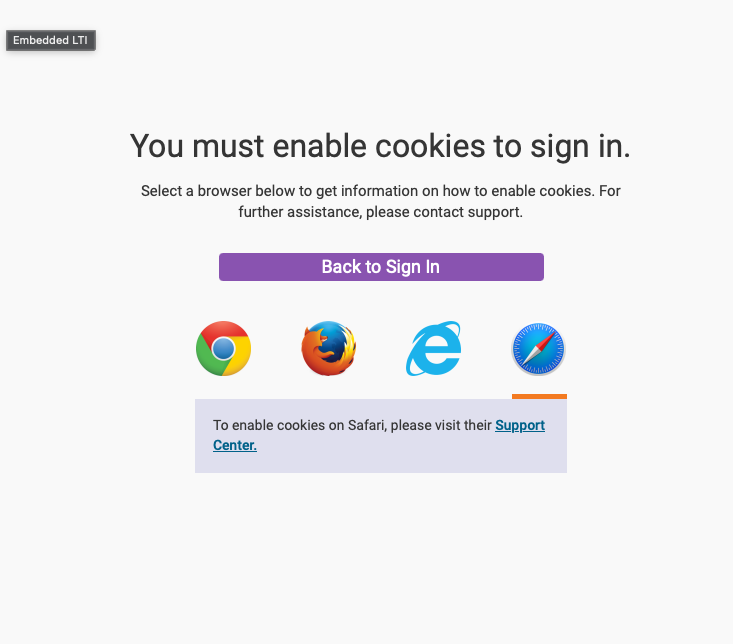
If you received a message that your launch was unsuccessful, it may be because your browser is blocking 3rd party cookies. Cookies are required to sign in to VitalSource through Engage.
\
If you receive either of the below error messages you'll need to update your browser settings to allow Engage & VitalSource to set cookies.
***
### Desktop
You can either allow all third party cookies or cross-site tracking, or add Canvas & Engage as websites that you allow to set cookies. You can find instructions for updating your browser settings on desktop below:
* [Google Chrome](https://support.google.com/chrome/answer/95647?co=GENIE.Platform%3DDesktop\&hl=en#zippy=%2Callow-or-block-third-party-cookies)
* [Safari](https://support.apple.com/guide/safari/enable-cookies-ibrw850f6c51/26.0/mac/26)
* [Internet Explorer](https://support.microsoft.com/en-us/help/17442)
* [Microsoft Edge](https://support.microsoft.com/en-us/help/4534105/microsoft-edge-configure-your-privacy-settings)
* [Firefox](https://support.mozilla.org/en-US/kb/cookies-information-websites-store-on-your-computer#w_cookie-settings)
{% hint style="info" %}
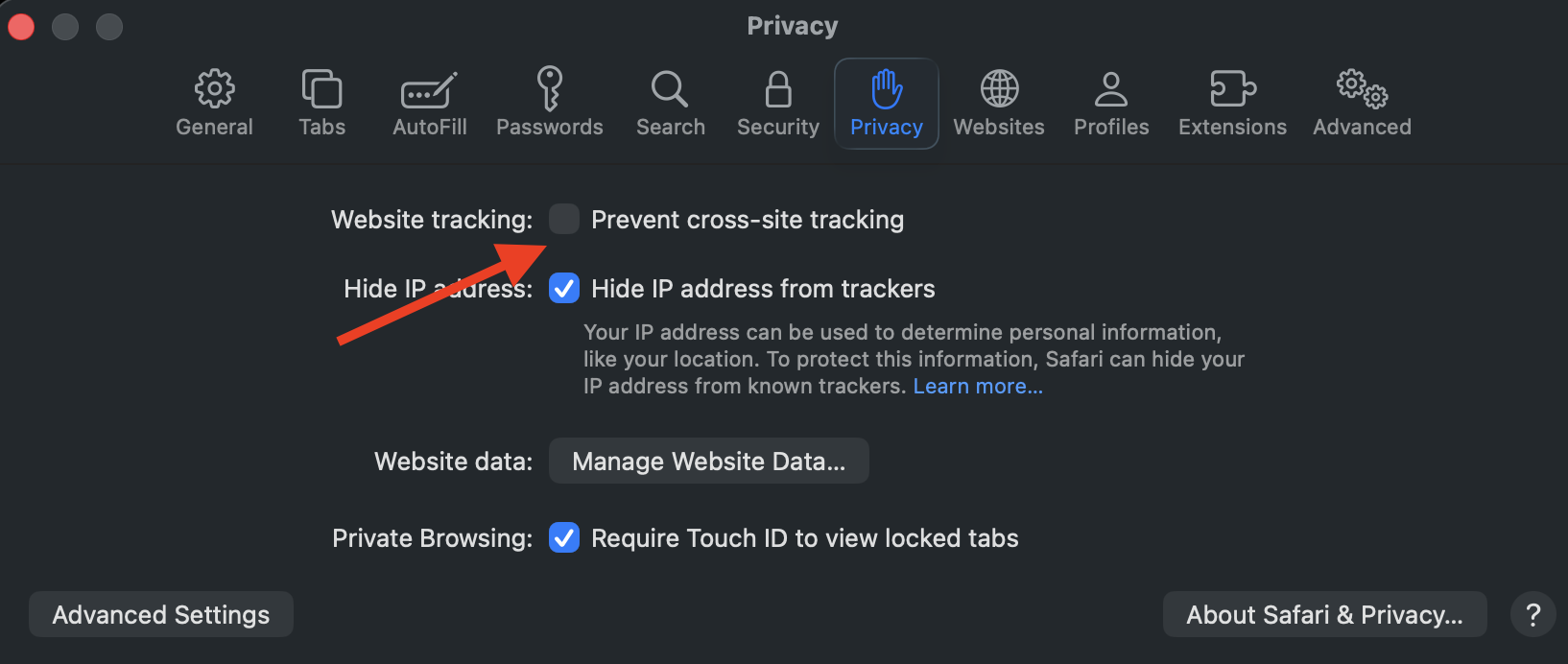
Important Note: **Safari** users must also uncheck *Prevent cross-site tracking.* This setting can be found by going to Safari -> Settings -> Privacy, and unchecking the box
{% endhint %}
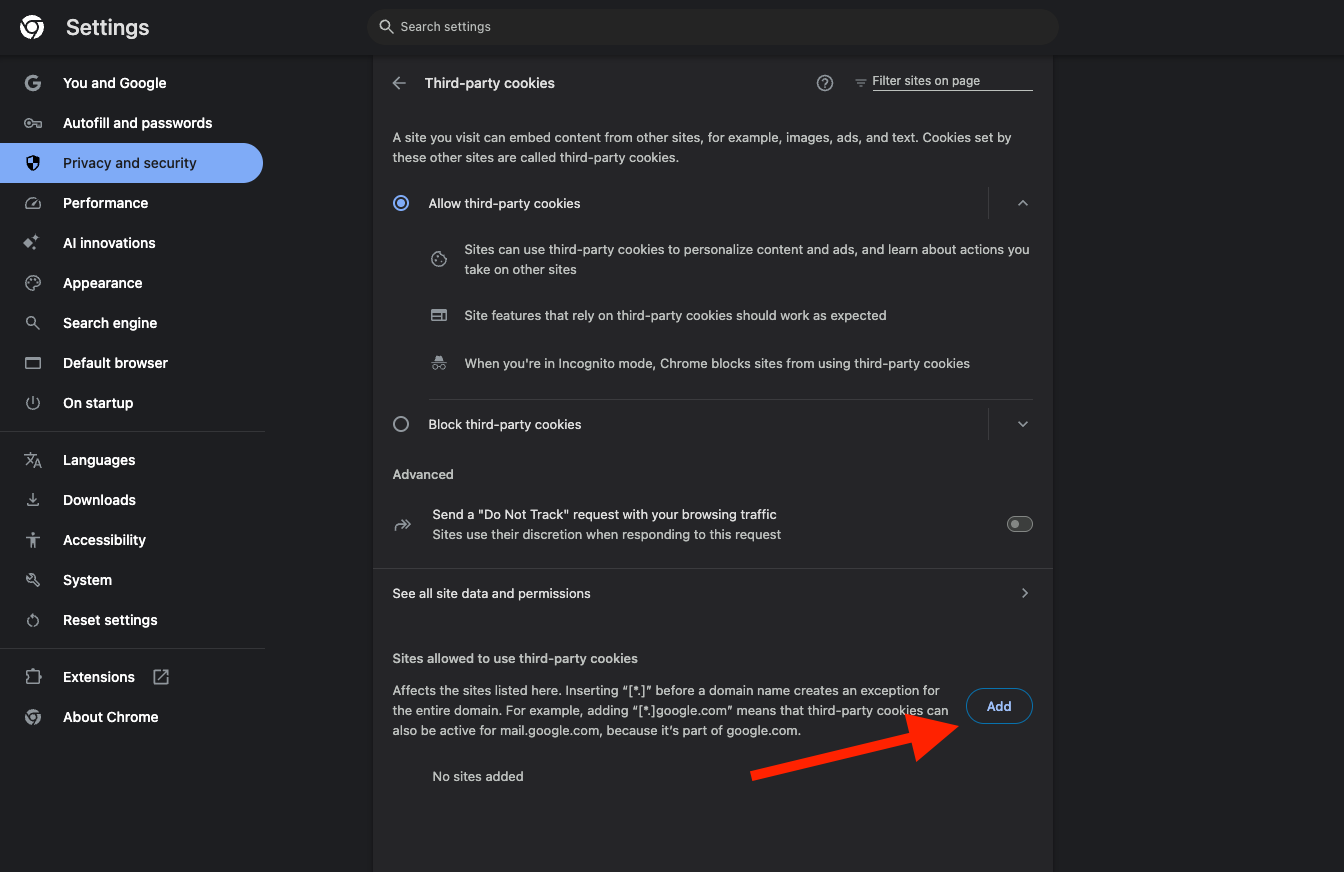
If you are using an **Incognito Browser** on **Google Chrome**, please note you will need to add **both** Canvas and Engage and as *Site allowed to use third-party cookies.*
To do this go to **Google Chrome -> Settings -> Privacy and Security -> Sites allowed to use third-party cookies**. Click "Add" and enter your university specific Canvas URL, as well as your university specific Engage URL you see at the top of your screen. For example: *iu.instructure.com &* *indiana.courseload.com* or *uiowa.instructure.com &* *uiowa.courseload.com*
***
### iOS
{% hint style="info" %}
Please Note: Unizin recommends using the native **Canvas App** or **Safari** **on iOS** for the best experience.
{% endhint %}
#### Safari & Canvas App
In order to enable 3rd party cookies on Safari & the Canvas Native App for iOS, navigate to the settings app in your device, and go to **apps -> safari**. Here, ensure that *Prevent Cross Site Tracking* AND *Block All Cookies* are turned **off.**
Depending on your device, *Block All Cookies* may be found under *Advanced* at the bottom of your page.
#### Google Chrome
In order to enable 3rd party cookies on Google Chrome for iOS, navigate to the settings app in your device, and go to **apps -> chrome**. Here, ensure *Allow Cross-Website Tracking* is turned **on.**
{% hint style="info" %}
Please Note: Due to *Chromium issue 40928043 (formerly crbug 1475807), Chrome may still be blocking 3rd party cookies on some devices even with this setting turned on. If this happens, Unizin recommends using Safari with the settings listed above instead.*
{% endhint %}