> For the complete documentation index, see [llms.txt](https://resources.unizin.org/llms.txt). Markdown versions of documentation pages are available by appending `.md` to page URLs; this page is available as [Markdown](https://resources.unizin.org/products/content/unizin-engage/vitalsource-ereader-user-guide/offline-download.md).
# Offline Download
### How do I access the offline or downloadable version of my book?
Once you have launched your eText from Engage via your browser, you can access the offline mobile apps quickly and easily from any of your eTextbooks by clicking the More Options (3-dot menu) and then Download App or by clicking your Account Icon on the top right.
A pop up will appear. You can then choose to download apps or use the quick mobile sign in.
Bookshelf dropdown menu
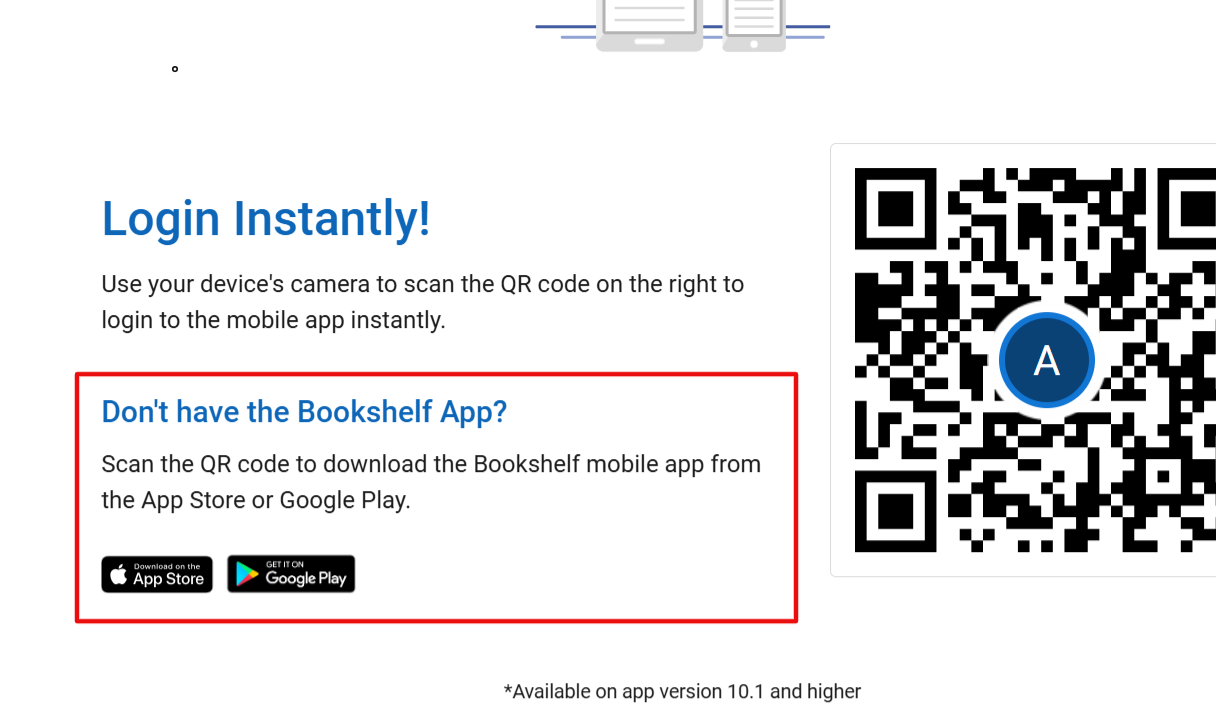
Instructions to download and access the app will be displayed. Using your device camera, scan your personal QR code. You will automatically be navigated to the app store for your device to install the app. Click Launch and you will automatically be signed into Bookshelf. Note: Amazon Fire users will need to download the app onto their device before scanning their personal QR code
QR code option
**Already downloaded the mobile app?**
If you have already downloaded the mobile app, launch the app and tap Scan QR code on the Bookshelf sign-in screen. Locate your personal QR code in the online browser platform by opening your eTextbook and clicking More Options (3-dot menu) and then Download App. Once you scan your QR code, you will automatically SSO into the mobile app.
Bookshelf login diagram
{% hint style="info" %}
Please Note: In order to access your eText, you *must* scan your personalized QR code in the browser. Entering your email and password will not activate your eText.
{% endhint %}
#### I Have Launched the App, Now What?
From here you can download books for offline reading.
#### Download Your eTextBooks
**Mobile App**
In the Bookshelf app, click on the book you want to download while your phone or tablet is connected to the internet. Once the book has been downloaded, a small checkmark icon will appear in the top-right corner of the title on your library.
| | | |
| ------------------------------------------------------------------------------------------------------------------------------------- | - | ------------------------------------------------------------------------------------------------------------------------------------------------ |